VPN on public Wi-Fi: the real risks and a simple protection checklist

TL;DR
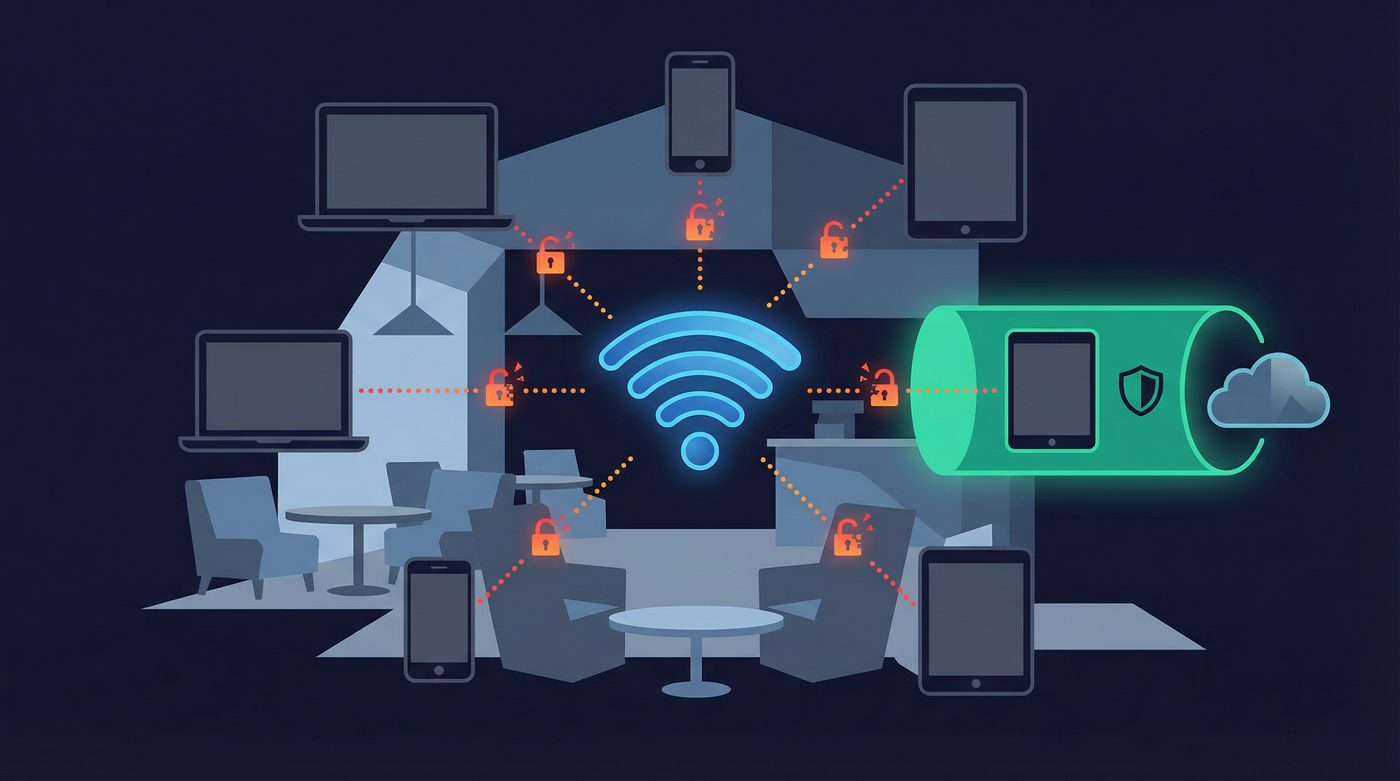
- Public Wi-Fi networks lack encryption, leaving your traffic exposed to anyone on the same network
- HTTPS protects the content of your browsing, but attackers can still see which websites you visit
- Common threats include packet sniffing, man-in-the-middle attacks, and fake access points
- A VPN encrypts your connection, hiding your browsing activity, credentials, and DNS requests from local threats
- A VPN cannot protect you from phishing, malware, or poor password hygiene
What a VPN Does (and Doesn't) on Public Wi-Fi
✅ A VPN does: - Encrypts your connection between your device and the VPN server - Hides your browsing activity and DNS requests from local network snoops - Protects your login credentials from packet sniffing - Masks your real IP address from the websites you visit
❌ A VPN doesn't: - Protect your device from malware or viruses - Stop you from falling for phishing scams - Fix poor password hygiene or secure compromised accounts - Encrypt data end-to-end across the entire internet
Connecting to public Wi-Fi at a coffee shop, airport, or hotel is convenient. It is also inherently risky. When you join an open network, you are sharing a connection with strangers, and without the right protection, your data is exposed.
You might assume that because a website uses HTTPS, you are safe. While HTTPS encrypts the content of your communication, it does not hide the metadata—meaning anyone on the network can still see which websites you are visiting. To truly protect your connection on public Wi-Fi, you need to understand the threats and how to mitigate them.
Why Public Wi-Fi is Dangerous
The primary danger of public Wi-Fi is the lack of network-level encryption. When you connect to your home Wi-Fi, the connection is typically secured with WPA2 or WPA3 encryption, meaning a password is required to join and traffic is encrypted over the air.
Public networks, especially open ones that do not require a password, lack this protection. Your data is transmitted in the clear. Anyone with basic software and a wireless network adapter can intercept the traffic flowing through the airwaves.
Even if a public network requires a password (like a café where the password is on the receipt), the risk remains. Because everyone on the network shares the same password, the encryption keys can be derived by anyone else on the network, allowing them to decrypt and view your traffic.
Furthermore, while HTTPS is standard across most of the web today, it is not a complete solution. HTTPS encrypts the payload—the actual data you send and receive—but it leaves the Server Name Indication (SNI) and DNS requests unencrypted. This means an attacker cannot see your password, but they can see exactly which bank or email provider you are connecting to.
5 Common Threats on Public Wi-Fi
1. Packet Sniffing
What it is: The interception of data packets as they travel across a network. How it works: Attackers use software tools (packet sniffers) to capture unencrypted data transmitted over the air. If you are not using a VPN, any unencrypted traffic—including HTTP websites, plain-text emails, and unencrypted app data—can be read in real-time. Real-world impact: Attackers can harvest login credentials, personal messages, and browsing history simply by sitting in the same room as you.
2. Man-in-the-Middle (MITM) Attacks
What it is: An attacker secretly intercepts and relays communications between two parties who believe they are directly communicating with each other. How it works: The attacker positions themselves between your device and the network router. When you try to connect to a website, the attacker intercepts the request, connects to the site on your behalf, and relays the information back to you. Real-world impact: The attacker can view, alter, or inject malicious content into your web traffic. They can downgrade HTTPS connections to HTTP, exposing your sensitive data.
3. Fake Access Points (Evil Twin)
What it is: A malicious Wi-Fi network set up to mimic a legitimate one. How it works: An attacker creates a hotspot with a name (SSID) identical or similar to a trusted network—for example, "Starbucks_Guest_Free" instead of "Starbucks_WiFi". When you connect to the fake network, all your traffic routes through the attacker's device. Real-world impact: The attacker has complete visibility into your network activity and can easily execute MITM attacks or serve you phishing pages designed to steal credentials.
4. Session Hijacking
What it is: The theft of a valid session token to gain unauthorized access to an account. How it works: When you log into a website, the server assigns you a session cookie so you do not have to re-enter your password on every page. If this cookie is transmitted over an unencrypted connection, an attacker on the same public Wi-Fi can intercept it. Real-world impact: The attacker can use the stolen cookie to impersonate you, gaining full access to your account without needing your username or password.
5. Malware Distribution
What it is: The injection of malicious software into your device via the network. How it works: Attackers can exploit vulnerabilities in the network or use MITM techniques to inject malware into the websites you visit. They might prompt you to install a "required update" to access the internet. Real-world impact: Your device becomes infected with ransomware, spyware, or keyloggers, compromising your entire system.
How a VPN Protects on Public Wi-Fi
A VPN is the most effective tool for securing your connection on untrusted networks. It addresses the fundamental flaw of public Wi-Fi—the lack of encryption—by creating a secure tunnel for your data.
What a VPN Hides from Attackers
- Browsing Activity: Because your traffic is encrypted before it leaves your device, local attackers cannot see which websites you are visiting. The SNI and HTTP requests are hidden inside the encrypted tunnel.
- Credentials and Data: Any data you transmit, even to sites that do not use HTTPS, is encrypted by the VPN. Packet sniffers will only see scrambled, unreadable data.
- DNS Requests: A quality VPN routes your DNS queries through its own encrypted servers. This prevents local network administrators and attackers from seeing the domains you are trying to resolve.
- IP Address: The websites you visit will see the IP address of the VPN server, not the IP address assigned to you by the public Wi-Fi network.
What a VPN Doesn't Protect
It is crucial to understand the limitations of a VPN. A VPN secures your connection, but it does not secure your device or your behavior.
- Device-Level Security: A VPN will not stop you from downloading a malicious file or protect you if your operating system has unpatched vulnerabilities.
- Phishing: If you willingly enter your credentials into a fake website, a VPN cannot stop you. The connection to the phishing site will be encrypted, but the data still goes to the attacker.
- Poor Password Hygiene: Reusing passwords or using weak passwords leaves you vulnerable to credential stuffing attacks, regardless of whether you use a VPN.
Learn more: VPN leaks explained: DNS, IPv6, and WebRTC — and how to check yours
Public Wi-Fi Protection Checklist
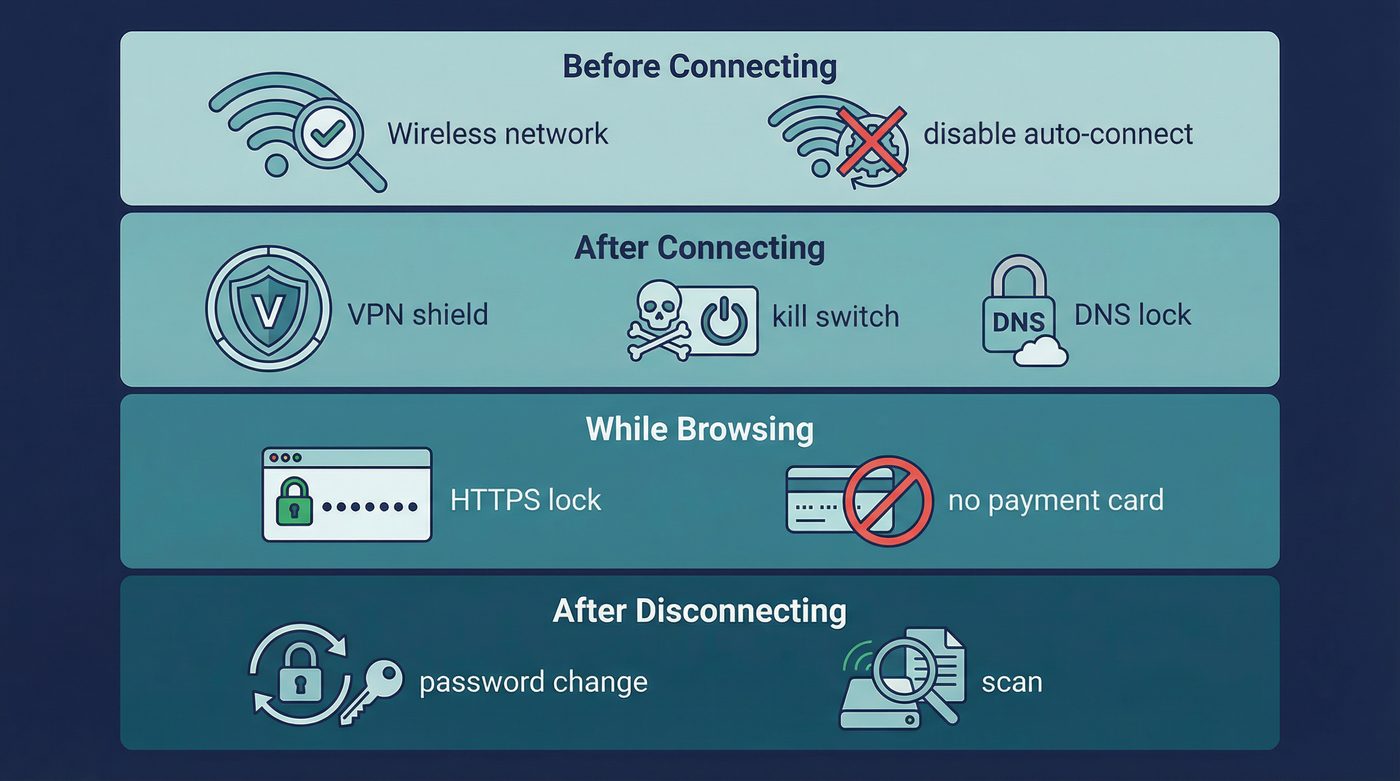
To stay safe on public networks, follow this checklist before, during, and after you connect.
Before Connecting
- Verify the network name: Ask an employee for the exact name (SSID) of the official network to avoid Evil Twin hotspots.
- Avoid open networks when possible: Prefer networks that require a password (WPA2/WPA3), even if the password is publicly shared.
- Disable auto-connect: Ensure your device is not set to automatically join known or open networks. You should always make a conscious decision to connect.
After Connecting
- Connect your VPN immediately: Do this before opening your browser or checking email.
- Enable the kill switch: Ensure your VPN's kill switch is active so your traffic is blocked if the VPN connection drops.
- Use Private DNS: Verify that your VPN is handling your DNS requests to prevent leaks.
- Verify it is working: Check your IP address to confirm your traffic is routing through the VPN server.
Learn more: How to check if your VPN is working: IP & DNS leaks (a quick guide)
While Browsing
- Stick to HTTPS: Ensure the websites you visit use HTTPS. Most modern browsers will warn you if a site is not secure.
- Avoid sensitive logins: Even with a VPN, it is best practice to avoid accessing banking or highly sensitive accounts on public Wi-Fi unless absolutely necessary.
- No payment info: Do not enter credit card details or make purchases on untrusted networks.
- Disable file sharing: Turn off AirDrop, nearby sharing, and network discovery features on your device to prevent unauthorized access.
After Disconnecting
- Forget the network: Tell your device to "forget" the public Wi-Fi network so it does not auto-connect in the future.
- Run a malware scan: If you suspect the network was compromised, run a scan with your antivirus software.
- Change passwords: If you logged into sensitive accounts without a VPN, change those passwords immediately from a secure network.
Learn more: VPN for travel: safer airports, hotels, and geo-changes without surprises
The PrivateByRight Approach
We build our systems to provide robust protection on untrusted networks, focusing on strong encryption and fail-safes.
Encrypted Tunnel
We use modern, secure protocols like WireGuard and OpenVPN to create an encrypted tunnel between your device and our servers. This ensures your data is unreadable to anyone sniffing traffic on a public Wi-Fi network.
Kill Switch
Our system-level kill switch blocks all internet traffic if your VPN connection drops unexpectedly. This prevents your device from reverting to the unencrypted public Wi-Fi connection and exposing your data.
Learn more: Kill switch: what it is, why it matters, and how to test it
Private DNS
All DNS requests are routed through our encrypted tunnel and resolved by our own DNS servers. This prevents the local network administrator or attackers from seeing which websites you are trying to visit.
Learn more: Private DNS: why DNS leaks happen and how Private DNS helps
No-Logs
We do not log your browsing history, connection timestamps, or IP addresses. Our no-logs policy is designed to be audited by independent third parties, ensuring that even if we are asked for data, we have nothing to hand over.
Learn more: No-logs explained: what it means, what to look for, and how we design for it
FAQs
Is it safe to use public Wi-Fi with a VPN?
Yes, using a VPN significantly reduces the risks of public Wi-Fi. It encrypts your traffic, protecting your data from packet sniffing and man-in-the-middle attacks. However, it does not protect against malware or phishing, so you still need to practice good security hygiene.
Can the Wi-Fi owner see what I'm doing if I use a VPN?
No. When you use a VPN, the Wi-Fi owner (and anyone else on the network) can only see that you are connected to a VPN server and the amount of data you are transferring. They cannot see the websites you visit, the files you download, or the messages you send.
Do I need a VPN if a website uses HTTPS?
Yes. HTTPS encrypts the content of your communication, but it does not encrypt the metadata. Without a VPN, attackers on the network can still see the domains you are visiting (e.g., they know you are on your bank's website, even if they can't see your password). A VPN encrypts this metadata as well.
Should I leave my VPN on all the time?
For maximum security, especially on mobile devices that frequently connect to different networks, leaving your VPN on is a good practice. It ensures you are protected even if your device auto-connects to an open network in the background.
Learn more: VPN for remote work: protecting logins, Slack, and client systems
What happens if my VPN disconnects on public Wi-Fi?
If your VPN disconnects and you do not have a kill switch enabled, your device will automatically route traffic through the unencrypted public Wi-Fi connection, exposing your data. Always ensure your VPN's kill switch is turned on.
Sources & Further Reading
- Cybersecurity and Infrastructure Security Agency (CISA). (2023). Securing Wireless Networks.
- Federal Trade Commission (FTC). (2022). Tips for Using Public Wi-Fi Networks.
- National Security Agency (NSA). (2021). Securing Wireless Devices in Public Settings.
- Electronic Frontier Foundation (EFF). (2020). Surveillance Self-Defense: Communicating with Others.
- Internet Engineering Task Force (IETF). (2018). The Transport Layer Security (TLS) Protocol Version 1.3.
Related Guides
- Learn more: What is a VPN? How it works and what it does (in plain English)
- Learn more: Do VPNs make you anonymous? What a VPN can and can't hide
- Learn more: WireGuard vs OpenVPN: differences, tradeoffs, and which to choose
- Learn more: Split tunneling: when to use it, risks, and best practices
- Learn more: Tracking 101: cookies, pixels, device IDs — and where a VPN fits
- Learn more: Browser fingerprinting: what it is and how to reduce it
- Learn more: Free vs paid VPNs: privacy, security, and the hidden tradeoffs